Start a Remote Access Session
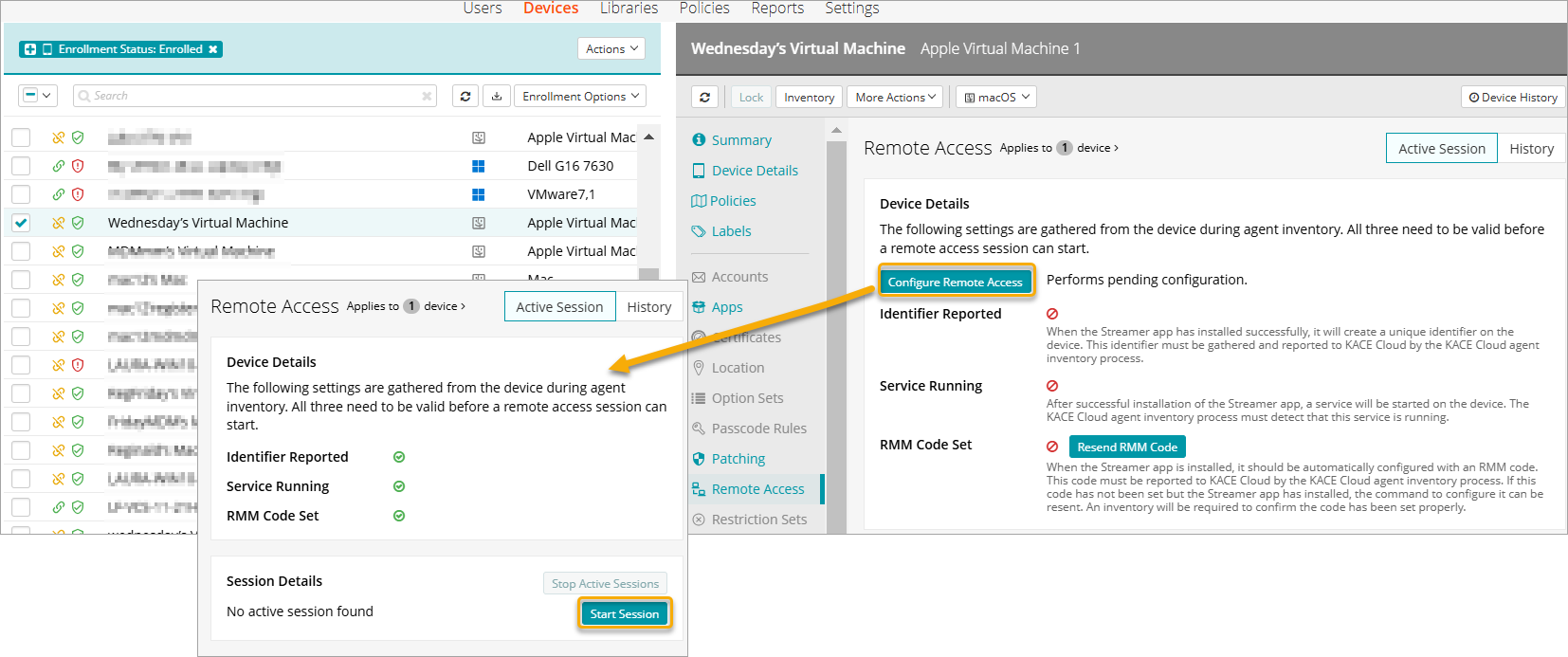
Before you start a remote access session, you must confirm that the parameters such as Identifier Reported, Service Running, and RMM Code Set are set up.
If the parameters are not set, you must complete the pending configuration.
To complete the Remote Access configuration,
- In the Devices tab, go to Devices list.
- Click the device you wish to connect. The device related details appear on the right pane.
- Click the Remote Access tab on the pane to open the Remote Access settings details.
- Click Configure Remote Access to perform pending configuration.
After the parameters are set, the red tick mark turns green. - Ensure all the settings (Identifier Reported, Service Running, and RMM Code Set) are marked valid.
- If the RMM Code is not set, click the Resend RMM Code button.
- For macOS, if the parameters remain red even with Splashtop installed and configured, click Configure Remote Acces again.
Once all the parameters are green, you can start a remote access session.
|
|
|
After confirming all the parameters are in place, you can start a remote access session.
To start a remote access session,
- In the Devices tab, go to the Devices list.
- Click the device you wish to connect. The device details appear on the right pane.
- Click the Remote Access tab on the pane to open the Remote Access settings details.
- Ensure all the settings (Streamer App Installed, Identifier Reported, Service Running, RMM Code Set) are marked valid.
-
Click Start Sessions to initiate a remote access session.